Save, run, and delete a query
Create one saved query that needs no table, tag, secret, or parameter, run it, then remove everything you created. You create and delete the query in TaruviBase Console and run it from your application with the JavaScript or Python SDK.
Before you begin
You need:
- An app in a development site and a TaruviBase Console account. Any signed-in Console user can create, edit, or delete saved queries; see who can manage queries.
- A signed-in JavaScript or Python SDK client for the same site and app.
No data table, tag, connection secret, or caller parameter is required.
1. Save an internal query
-
Open the app in TaruviBase Console, select Analytics, then select Create Query.
-
In Create New Query, enter a Query Name, such as
Readiness check. -
Turn Internal Query on. Queries start in external mode, which needs a connection secret; internal mode doesn't.
-
In Query Text *, enter:
SELECT 1 AS ready
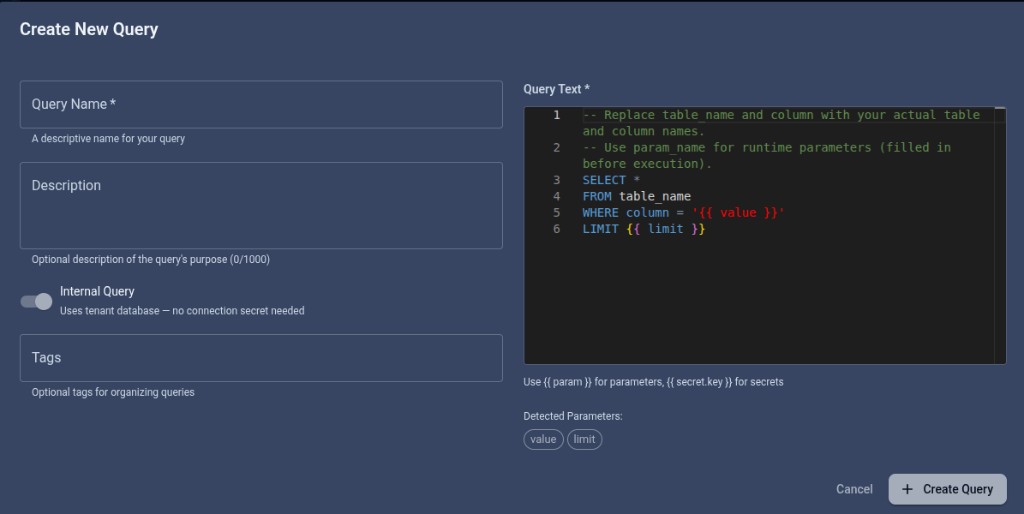
- Select Create Query.
Expected result: the query appears in the app's Analytics list. Open it and copy the generated slug shown below the query name for the SDK call.
2. Run it without parameters
The query has no placeholders, so the run sends no values. To add values to a query, see Placeholders and bound values.
- JavaScript SDK
- Python SDK
const analytics = new Analytics(client);

const result = await analytics.execute('QUERY_SLUG');
result = client.analytics.execute("QUERY_SLUG")
Expected result: one row comes back with ready set to 1, together with
a row count and an execution key in the SDK result:
{
  "status": "success",
  "message": "Query executed successfully",
  "data": [{ "ready": 1 }],
  "total": 1,
  "execution_key": "3f6b1d90-8c2a-4e77-a1b5-90c7e4d2f118"
}
If the run is refused, the caller may have no role on the app at all — see Access is refused.
3. Remove what you created
Deleting the query permanently removes its query text, name, and connection settings, along with its execution records (the saved history of its past runs). Anything still calling the query by its slug stops working.
Before you confirm deletion:
- Affected resource and cascade — confirm the app and query slug; the query definition and its execution records will be deleted.
- Reversibility — understand that Analytics has no archive, disable, or restore operation for a deleted query.
- Authorization — deletion checks only that you are signed in, not your app role, so confirm you are the right person to remove the query.
- Backup — copy the query text, connection mode, connection secret key if applicable, description, and tags needed to recreate it.
- Confirmation — confirm that no caller still uses the slug. The dialog asks you to confirm before it deletes anything.
- Success and postcondition — Console returns to the Analytics list, the query is gone, and its page no longer opens.
- Recovery — if deletion was a mistake, recreate the query from the backup and update callers if the restored slug differs.
Open the query from step 1, select the delete control, and read the Delete Query dialog. It warns that the action cannot be undone and that all execution history for the query will also be deleted. Select Delete Query only after completing the checks above; otherwise select Cancel.
Confirm the query no longer appears in the app's Analytics list.
You created, ran, and removed a query
You saved a self-contained internal query, ran it without parameters, then deleted it and confirmed it no longer appears in the app. If any step did not go as described, see Troubleshoot Analytics.
Next steps
- Create and manage a saved query for the fuller task reference on naming, editing, and deletion.
- Run a query and read the results for exporting results and reading Elasticsearch aggregation output.
- How saved queries work for the model behind connection modes, parameters, and table references.
- Security and limits for the run checks, who can manage queries, and what is refused when a query is saved.