Work with Functions in TaruviBase Console
Console is the only interface that covers every function task. Use it to write code, run a function with test parameters, and read what past runs produced.
Prerequisites
- An app in your site.
- An organization owner or admin account, or another cloud user with access to the site.
Find the functions in an app
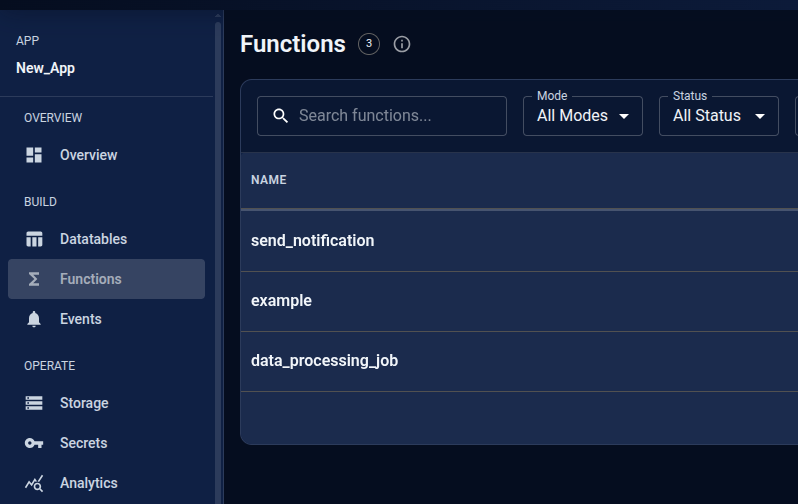
Open the app and select Functions.
The list shows Name, Mode, Status, Tags, Updated, and Actions. Narrow it with the Mode filter (All Modes, APP, PROXY), the Status filter (All Status, Active, Inactive), or by tag.
Create a function
Select Create Function.
The dialog collects Name, Description, Tags, and three switches: Active, Async, and Is Public. Proxy functions also take a Webhook URL and Headers.
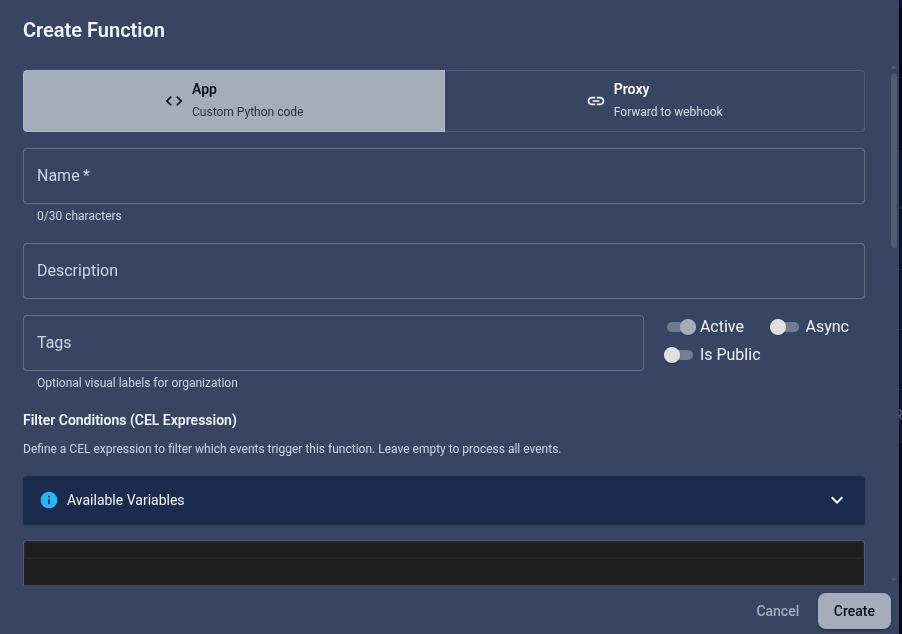
Is Public makes the function executable by anyone who can reach its endpoint, with no credentials and no permission check. Leave it off unless you intend that. See Security and limits.
Schedules are part of the function, so you set them in this dialog and in Edit afterwards — not in a tab. Each schedule takes a Preset or a Custom Cron Expression, optional Schedule Parameters (JSON), and its own Active switch. Remove schedule deletes one.
Know which tabs your function has
The tabs differ by execution mode, so check the mode before looking for a tab.
| Mode | Tabs |
|---|---|
| APP | Editor · Version History · Execution History |
| PROXY | Config · Execute · Execution History |
An app function has no Execute tab. You run it from the Editor tab instead, which keeps the code and the run together.
The header shows the execution mode and, when schedules exist, a Scheduled (n) chip counting the active ones.
Write and run app code
Open an app function and select Editor.
The editor is a Python editor with completions. Two actions matter:
- Save — the save control, or
Cmd/Ctrl+S. An Unsaved chip appears while there are pending edits. - Run — the run control, or
Cmd/Ctrl+Enter.
Turn on Async to queue the run instead of waiting for it.
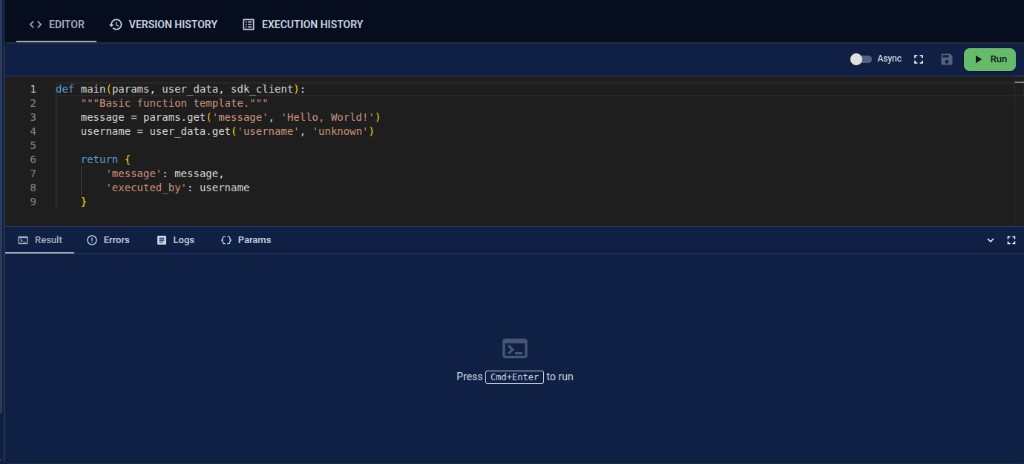
The panel beneath the editor carries four tabs:
| Panel | Shows |
|---|---|
| Params | The parameters sent with the run, as JSON |
| Result | The function's return value |
| Logs | Log output captured during the run |
| Errors | Compilation and execution errors |
Set Params before running, since that is where the function's input comes from. Saving creates a version whenever a tracked field changed; see Versioning.
Run a proxy function
Open the function and select Execute.
Enter parameters, choose whether to run Async, then run it. Results appear under Output, with Logs and Errors beside them. An empty run reports No logs captured rather than failing.
For a proxy function, the Config tab shows the webhook URL and headers, and offers Copy URL for the function's execute endpoint.
Review earlier versions
Open an app function and select Version History.
Entries are labelled Created, Updated, or Deleted, with the user who made each change. Restore puts an earlier version back.
Other versioned fields — including the webhook URL, headers, and run configuration — keep their current values, so restoring a function whose configuration changed since that version produces a combination that never existed. Check what else changed before you restore.
Restoring creates a new version rather than rewinding the counter, so history stays append-only.
Read past runs
Select Execution History on any function.
Filter by All Status or All Triggers to separate API calls from scheduled and event-driven runs. Each row carries its Duration and Status; a failed run reads Failure.
Open a row for Execution Details, which carries Overview, Result, and Logs panels along with the Input Parameters the run received.
Every organization user with access to the site can read the execution history of every app, including parameters, results, and captured logs. Never log credentials or personal data from function code.
Delete a function
Deleting is permanent and removes the function's version history, invocation records, and schedules along with it. Console asks you to confirm.
To stop a function running while keeping its history, clear Active in Edit instead. See Security and limits.